I tried installing CachyOS multiple ways. I tried different bootloaders and the only one that seems to install is Limine. I have selected Plasma with the HP printers. I checked my BIOS after every restart (MSI Tomahawk Z790 MAX WiFi) and the bootloader is never present. I tried using the KDE partitioner to force the boot partition to have the mountpoint /boot/efi but to no avail. Every time I boot into the live environment, it just says the there is no mountpoint. I dunno what to do. I just want to use my computer without problems and Windows is currently giving me loads of problems, so I switched to Linux and now I cant get linux to install and just run. When I was using ventoy I had to legit run the live environment to boot into the operating system because my UEFI would refuse to find the Linux Bootloader.
Can someone please help me figure out why my computer refuses to boot into Linux?
Specs:
i7-14700K
DDR5 32GB 6000Mhz
MSI Tomahawk Z790 MAX WiFi
RTX 5070 Ti
1000W PSU
Just to note that this is not what we want. /efi is the standard now.
But Cachy (and systemd-boot) prefers /boot.
So the issue seems to be that you can boot the ISO and succesfully complete the installation but afterwards you are unable to boot the installed system?
A snippet of logs and system information can be automatically uploaded via;
sudo cachyos-bugreport.sh
( share the link here )
We can also look closer at the internal system from the live ISO - to verify the installation is there, that the ESP was created, and so on. ex;
Yes, I’d have to make a new live environment with ventoy, but my current live environment was made by Rufus. Using rufus was easier and faster than trying to get ventoy to work. But I cannot boot into the OS right now until I make that change. Overall, I believe I can boot into the OS using ventoy. I’m willing to reinstall, but the same thing will happen again, the bootloader will not show in the UEFI of my motherboard. It refuses to show the bootloader. I have 0 clue how to fix this, and I know 0 command lines, so I’mma need a walkthrough on what to do. I also have windows formatted drives, that’s why you see others, I did not unformat them yet.
So which partition is supposed to be the cachy installation?
I would think everything between loop0 and sd* is the USB.
Which leaves the nvme* partitions .. none of which appear to contain any linux/cachy filesystem.
An ESP (EFI System Partition) also seems conspicuously absent.
PS.
I would generally advise against rufus .. but if you do use it then you probably want to make sure to set it to dd mode.
The sdb System, and sdc cachyos are the cachy installs. I dont know what the zram is on cachyos. I have partitioned it out so that I can keep all my programs on a new partition that I create so I have easy access to them and everything isn’t flooding the main drive. I’mma be gaming on this PC so I need all the save space the OS can give, plus it just makes troubleshooting easier when something goes wrong.
Loop0 is most likely the USB
Just now saw the last part. For Rufus, I did ISO mode. I use Rufus because when I tried Etcher, it fucked up and didn’t do anything, fedora media writer broke one of my USBs and I tried another tool and it broke that USB too. So I am on new USBs.
The ZRAM is the installer ISO loaded into your system RAM temporarily. You may also want to check and make sure that Compatibility Support Module (CSM) is off in your BIOS. That and check your BIOS to make sure that secure boot is disabled, unless the Windows installation that those NTFS drives are connected to requires it. rEFInd is also a better bootloader for dualbooting, have you tried installing it with that? Oh, and make sure to set the linux bootloader as first in boot priority if it manages to show up!
To try to fix those “broken” USB drives, try using the Windows tool diskpart to format the partition table to GPT before trying to install Ventoy or burn an ISO to them. It has helped me in the past to do this when flashing media from Windows.
I do not have windows installed. I am keeping them there until I figure out how to get Linux installed. Because Windows just keeps making my PC restart, I think my CPU might be dying and I just dont wanna deal with that problem right now. CSM is off and UEFI is on. Secure boot is disabled.
Dang, that’s a shame. I’ve found it worthwhile to invest in a pricier USB that can handle being read and written from a lot. I personally recommend PNY, their premium lines have never died on me.
Is a virtual device. The USB is still something else.
OK .. if thats true then
At least in the case of sdc it would seem its not in an acceptable format - fat32 is a restrictive filesystem not appropriate for a linux OS. The only thing it should be used for on your modern OS is the ESP - the little partition that boot files go in that can be shared. sdb might be correct with sdb1 as the ESP and sdb2 on for root.
But we would need more information to make sure it is set correctly ..
It might make sense to start over again but pay attention to some important bits like;
Ensure you boot the USB using UEFI mode not Legacy/BIOS.
Try rEFInd as a bootloader this time. If that fails, try running sudo pacman -Syu in Konsole before running the installer. That has helped me on occasion to fix installation being borked.
Edit: if you have not done the things cscs described above first though, do all of that first before trying my suggestion.
Lets start over, I wanna use limine for the snapshots and to backup easily. I have a backup drive ready to go. I have no clue where to go in the MSI bios to find AHCI-SATA. Could you point me in the right direction while I also try to find the solution for that?
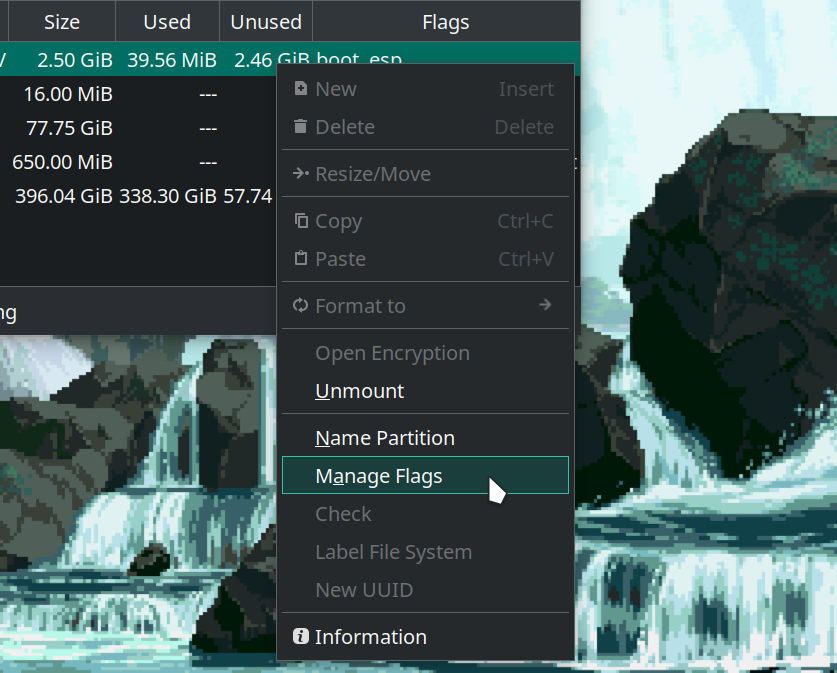
What should my file system be for boot? I do not see ESP in the partition file system or flags. I’mma need a little more help with that. I’m using the latest version of the ISO file
Update: Just verified ACHI and it’s on that. RAID disabled and I got my boot drive in an actual SATA port, not the A1 port.
If we start over we can just use sdb .. it looks like it most closely resembles an existing install so I will continue forward assuming thats what we are working with.
This is sometimes referred to as “Data” .. we are just trying to make sure it is SATA and not RAID.
Though this is likely already the case if you could interact with the storage devices from the ISO.
We want that to be FAT32.
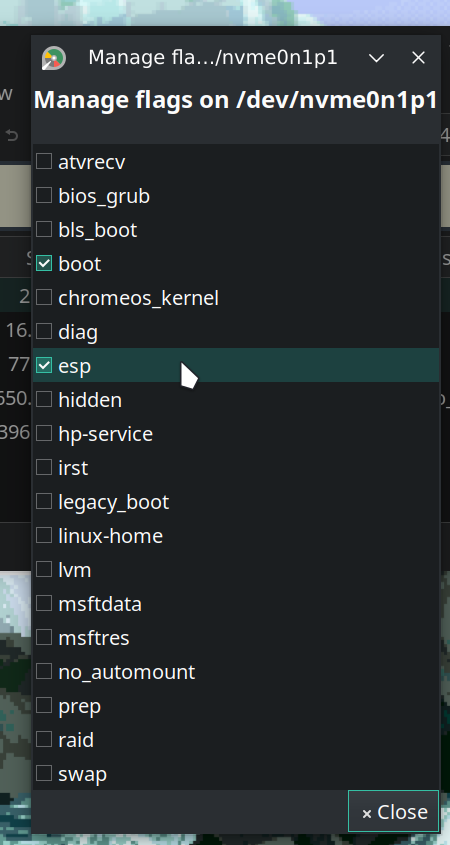
The flags should ultimately be boot and esp.
So with sdb we should end up with something like the following;
It may be noted that that ESP is a little large. But if you plan on keeping snapshots, using UKI, holding many OSs, you may even consider making it larger.
On the other hand for those of us who do not use such things it can be as small as ~260MiB.
Given some of the comments here I thought it should likely be a few gigs at least.
I was considering complely reinstalling and starting from scratch. I can put the first partition as 2gigs but I just havent seen an ESP flag. I will send a screenshot once my live environment boots up
Just a suggestion if you plan on keeping a lot (multiple kernels or OSs) or large things (unified kernel image) there.
To be clear the flag is lower-case.
I also recall some past versions of calamares (the installer) failing in a number of partition duties including at one point missing the esp flag .. at that time the easy workaround was to use a dedicated tool like gparted to apply the flag.
(I also think I remember the boot flag might not be needed any more so long as esp is applied. But FWIW on my install my ESP has both.)
PS.
Of course the Archwiki has decent info on ESPs in general if that would be handy;
Alright. Once I get everything how I want it, it’ll probably be like 10 minutes or so before it is installed again. Once it is, I’ll let you know, then update as I look into gparted