I’ve installed CachyOS over the weekend and it’s going very well so far. Everything just appears to work. Some of the more technical installation steps have already been taken. The getting started / installation Wiki explains a lot. However I feel it misses some basics or links to resources about them.
I’ve already managed to (re)enable secure boot in a way that did not break my Windows install. I also configured the GRUB bootloader to detect the Windows install so I don’t have to switch boot devices in UEFI bios every time I want to boot the other OS.
However, a very basic piece of configuration has me puzzled; the keyboard.
Coming from Windows on a US intl. keyboard I’m used to typing a ‘ followed by a letter to get an accent. So ‘e > é or “o > ö
I figured out you can use a compose key (alt gr in my case), but that feels cumbersome.
Then I found another KB layout called “US intl. with dead keys” that seems to work as expected without composing. The downside; it also catches the ‘ when typing contractions like don’t or would’ve. That means you then have to type don’spacebart …or it’ll turn into a don´t instead of a don’t.
Q: Is it possible to both NOT need to use a compose key for writing é AND be able to type contractions like wasn’t ?
KDE Plasma Version: 6.5.4 KDE Frameworks Version: 6.22.0 Qt Version: 6.10.1 Kernel Version: 6.18.5-2-cachyos (64-bit) Graphics Platform: Wayland
I’ve done quite some searching around and so far have not found any solutions other than writing a completely custom keymap/XKB.
Is there really no default way to be able to type can't instead of can´t and be able to also type é by typing ´e without needing a compose/AltGr key first?
No. I tried to give it some time.
Thinking the lack of any answers nor finding real solutions online meant this is just Linux ‘normal’ and a matter of “get used to it”.
Well … I still don’t like it. Too often I automatically add a space after quotes (to prevent accents) leading to things like " quotes with a space" which I then need to correct again.
Years of muscle memory and habbits from typing on Windows.
hi, brazilian here. i’ve been using this for a few weeks now and it’s already way better than the default keyboard configuration :] definitely recommend to check it out
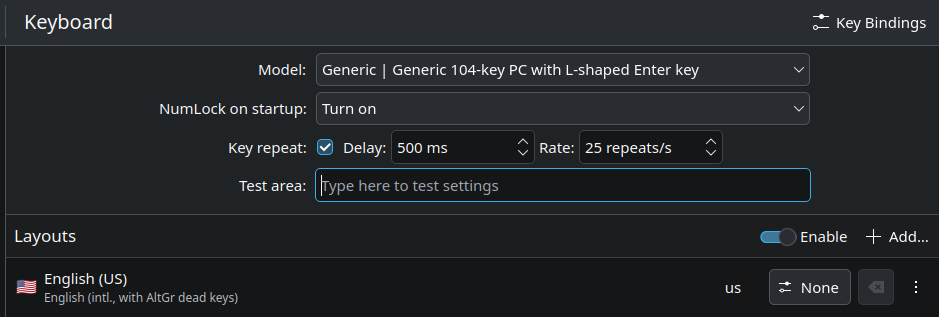
I just tried alt 1 of the install options and after figuring out I needed to remove the current keyboard layout I had set in the keyboard system settings (see screenshot in my first post) it works.
Thanks for the encouragement and glad I helped put others on a path to a solution as well.
Hey! Brazilian here!
I am currently new to Linux, and I am trying Cachyos with KDE.
I checked the link for the win_us_intl, but I am unsure of how to install it.
Yes, I show the steps of what commands to use, but even with that, I am still unsure which instruction to follow.
KDE on CachyOS likely uses Wayland by default. Instead of ~/.xprofile (which is for X11), it is safer to set these variables in a way that KDE recognizes upon login.
Note: If the directory doesn’t exist, create it first with mkdir -p ~/.config/environment.d/.
 and glad I helped put others on a path to a solution as well.