Can you make sure that users don’t have to go through a trial-and-error process first, but can access the drive right away via plug-and-play—regardless of its size—for data backup and other purposes, without having to spend hours searching for it? Businesses and the like rely on this kind of functionality.
External devices largely already are plug-and-play.
Maybe a little less apparently so under one of the minimalist window managers?
Or what are we talking about exactly?
I connected a 17-TB hard drive, but it keeps telling me to format it before I can use it with Chashy OS. But I don’t want to do that; I want to connect the device and back up data to it. This keeps causing problems with the hard drive—it’s recognized by the kernel, but I can’t use it. I want the hard drive to appear as connected when I click on the page and be available for data backup, but Chashy OS doesn’t do that; I can’t access the hard drive under “Recently Connected Devices.”
I am not sure what ‘it’ is here - Maybe the desktop? Gnome or something? What is the DE?
And what is the exact notice?
Maybe we could see some of the information?
lsblk -f
It sounds a little more like there is some kind of error.
Is there a command that also displays unrecognized hard drives?
Maybe something like
sudo fdisk -l
Festplatte /dev/sda: 931,51 GiB, 1000204886016 Bytes, 1953525168 Sektoren
Festplattenmodell: WDC WD10EZEX-60W
Einheiten: Sektoren von 1 * 512 = 512 Bytes
Sektorgröße (logisch/physikalisch): 512 Bytes / 4096 Bytes
E/A-Größe (minimal/optimal): 4096 Bytes / 4096 Bytes
Festplattenbezeichnungstyp: gpt
Festplattenbezeichner: 5748E333-5C2C-4533-861E-489788DC5C29
Gerät Anfang Ende Sektoren Größe Typ
/dev/sda1 2048 1690112947 1690110900 805,9G Microsoft Basisdaten
/dev/sda2 1778872320 1779922943 1050624 513M EFI-System
/dev/sda3 1779922944 1953523711 173600768 82,8G Linux-Dateisystem
/dev/sda4 1690114048 1778872319 88758272 42,3G Linux-Dateisystem
Partitionstabelleneinträge sind nicht in Festplatten-Reihenfolge.
Festplatte /dev/nvme0n1: 953,87 GiB, 1024209543168 Bytes, 2000409264 Sektoren
Festplattenmodell: INTEL SSDPEKNW010T8H
Einheiten: Sektoren von 1 * 512 = 512 Bytes
Sektorgröße (logisch/physikalisch): 512 Bytes / 512 Bytes
E/A-Größe (minimal/optimal): 512 Bytes / 512 Bytes
Festplattenbezeichnungstyp: gpt
Festplattenbezeichner: ABC4F78F-0F22-46B6-A9EE-744ABBAD8CF4
Gerät Anfang Ende Sektoren Größe Typ
/dev/nvme0n1p1 4096 8392703 8388608 4G EFI-System
/dev/nvme0n1p2 8392704 2000409191 1992016488 949,9G Linux-Dateisystem
Festplatte /dev/zram0: 62,14 GiB, 66719842304 Bytes, 16289024 Sektoren
Einheiten: Sektoren von 1 * 4096 = 4096 Bytes
Sektorgröße (logisch/physikalisch): 4096 Bytes / 4096 Bytes
E/A-Größe (minimal/optimal): 4096 Bytes / 4096 Bytes
Festplatte /dev/sdb: 15,26 TiB, 16777216000000 Bytes, 4096000000 Sektoren
Festplattenmodell: SSD
Einheiten: Sektoren von 1 * 4096 = 4096 Bytes
Sektorgröße (logisch/physikalisch): 4096 Bytes / 4096 Bytes
E/A-Größe (minimal/optimal): 4096 Bytes / 4096 Bytes
Festplattenbezeichnungstyp: dos
Festplattenbezeichner: 0x00000000
Gerät Boot Anfang Ende Sektoren Größe Kn Typ
/dev/sdb1 4294967295 8589934589 4294967295 16T ff BBT
/dev/sdb2 4294967295 8589934589 4294967295 16T ff BBT
/dev/sdb3 4294967295 8589934589 4294967295 16T ff BBT
/dev/sdb4 4294967295 6854241533 2559274239 9,5T ff BBT
So that looks like “Bad Block Table” to me but since it is also DOS table and its large.. I am guessing this might be in error and its actually an older device with some proprietary format? Or something similar?
Do you happen to know what format these partitions should be?
Or where and how do you use them normally?
is the drive formatted? and if so in what format?
can you report
sudo parted -ldos with 15Tb is something specific , before ,it can olny handle more than 4Tb
check if any prefs automount external disks / media is on , → put it off , to avoid that message
Fehler: Aufruf von stat für Gerät lsudo schlug fehl - Datei oder Verzeichnis nicht gefunden.
Wiederholen/Retry/Abbrechen/Cancel?
sudo parted l The “karm” error appears after entering the command
This was created by the manufacturer; I’m not familiar with the format.
update on command
Then you possibly need to format the drive like the OS is suggesting. Is it completely new or have you stored dataon it from some other system?
Exactly what sort of disk is this? “17 TB” is a very strange size and an SSD that size is quite unusual. A lot of the 16TB external SSDs that I see for sale around here are proprietary encrypted things.
I snagged it for a really good price during a sale. Yes, it’s an SSD, but Chashy OS won’t let me use it because the trade war is raging right now and some stores in Germany are having sales. I got it for a very low price. The problem, though, is that I can’t use it. Can you provide a patch for this? Because I really want a lot of storage space—it’s especially important for video editing. External SSD via USB.
Ok, wenn da noch keine Daten drauf sind würde ich erst eine neue Partitionstabelle erstellen und anschließend partitionieren und neu formatieren. Das ist übrigens oft ein normaler Vorgang bei neuen Festplatten, nur Linux macht es halt nicht alleine.
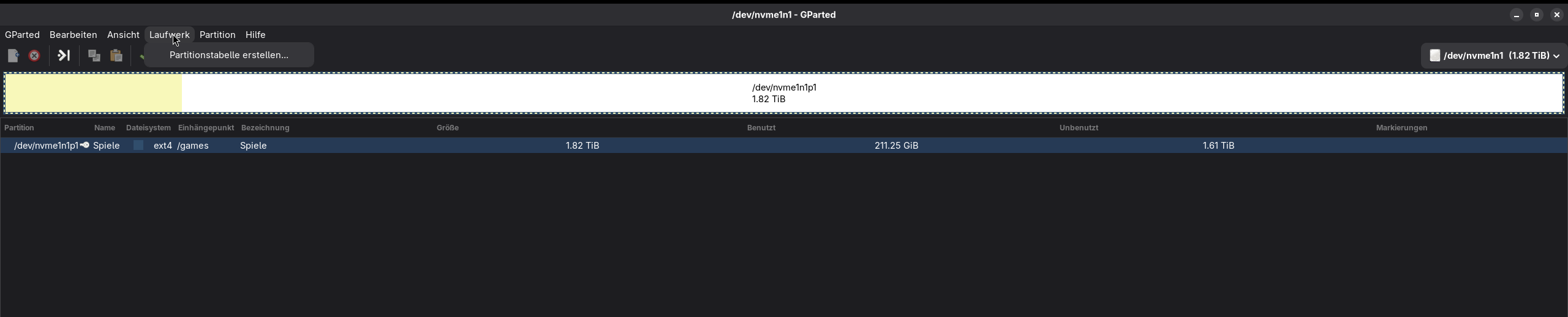
Ein oft benutztes und sehr gutes Programm dafür ist GParted. Installiere es und starte es anschließend.
Okay, if there’s no data on it yet, I would first create a new partition table, then partition and reformat. This is actually a common procedure with new hard drives; it’s just that Linux doesn’t do it automatically.
A frequently used and very good program for this is GParted. Install it and then run it.
Oben rechts kannst du das Laufwerk anwählen, welches du bearbeiten willst, du erkennst es an der Größe (ca. 17TB). Du musst dir sicher sein, weil du sonst deine gesamten Daten verlieren kannst falls du das falsche Laufwerk anwählst. Anschließend wählst du unter Laufwerk “Partitionstabelle erstellen…” an und wählst dann “GPT”.
Anschließend kannst du es beliebig in Partitionen unterteilen, aber ich würde vielleicht eine durchgehende Partition nehmen. Wenn du die Festplatte unter umständen auf anderen Betriebssystemen nutzen möchtest, wähle exFAT als Dateisystem, wenn du es ausschließlich unter Linux nutzt wähle ext4 oder BTRFS.
In the top right corner, you can select the drive you want to edit; you can identify it by its size (approximately 17TB). Make sure you select the correct drive, as you could lose all your data if you choose the wrong one. Then, under Drive, select “Create Partition Table…” and choose “GPT”.
Afterward, you can divide it into partitions as you like, but I would recommend using a single, contiguous partition. If you plan to use the hard drive with other operating systems, choose exFAT as the file system. If you will only be using it with Linux, choose ext4 or BTRFS.
Huh???
I really do not think a trade war is somehow sabotaging your drive…and Cachy and your desktop environment have literally told you exactly what you need to do.
So…format it. You cannot use an unformatted drive on any OS. Cachy, just like any other polite operating system, is telling you what you need to do to use the drive.
Hard drives need to be formatted before use. Every OS that I’ve ever used over the past decades has done one of 2 things when presented with an unformatted drive
-
Ignore it silently
-
Notify the user that it needs to be formatted and optionally offer to do so.
So it sounds like Cachy is already doing about the most that it should do here and you just need to format the drive.
If you format to Ext4 or BTRFS, it is important to note that GParted only assigns root privileges to the drive; in order for you as a user to also be able to write to it, you must adjust the permissions.
Can you give me step-by-step instructions on the best way to do this in Linux, since I’m still pretty new to it?