Laptop Hp Omen 16:
i7 13°
Nvidia 4060 8gb (120W)
32gb RAM
1tb + 2tb ssd
1gb ethernet
I already played other games on Steam with GE-Proton-10-28 and it works perfectly
I have Hogwarts Lecacgy at Epic Games Store
I’m using Hero Launcher, because that was in my default Cachyos installation, I’m not a Linux professional but I started to understand a few things about this, I used Wine, GE-Proton-Latest, Ge-Proton-10-28, but nothing works, it starts with a white screen and then just stays there.
I have had a similar issue with steam where the issue was the wayland backend. check out the following link and see if this helps you solve your issue:
https://bbs.archlinux.org/viewtopic.php?id=309757
Also, may be helpful to run Hero from the terminal and see if there are any errors being output there when you run the game.
I tried changing the proton version to 10-4, that works, now I have a black screen but with the music.
I think you’re getting there. At least on the right track. According to AI search results:
Method 1: The Gamescope Approach (Recommended)
-
Install Gamescope: Ensure gamescope is installed on your system (e.g., sudo pacman -S gamescope on Arch/Hyprland).
-
Configure Heroic Games Launcher:
-
Open Heroic and go to Settings > Game Defaults.
-
Scroll down to the Gamescope section.
-
Enable the option to use Gamescope.
-
You can define additional parameters like --width 1920 --height 1080 -f to force fullscreen and your desired resolution.
-
Configure via Steam: If you add Epic Games to Steam via the Heroic integration, right-click the game > Properties > General, and under Launch Options, add:
gamescope -W 1920 -H 1080 -f -- %command%
(Replace with your native display resolution).
Method 2: Enabling Native Wine/Proton Wayland Drivers
Recent versions of Proton and Wine (including GE-Proton) feature native Wayland drivers which drastically improve latency and frame delivery.
-
Open your specific game’s settings in Heroic Games Launcher.
-
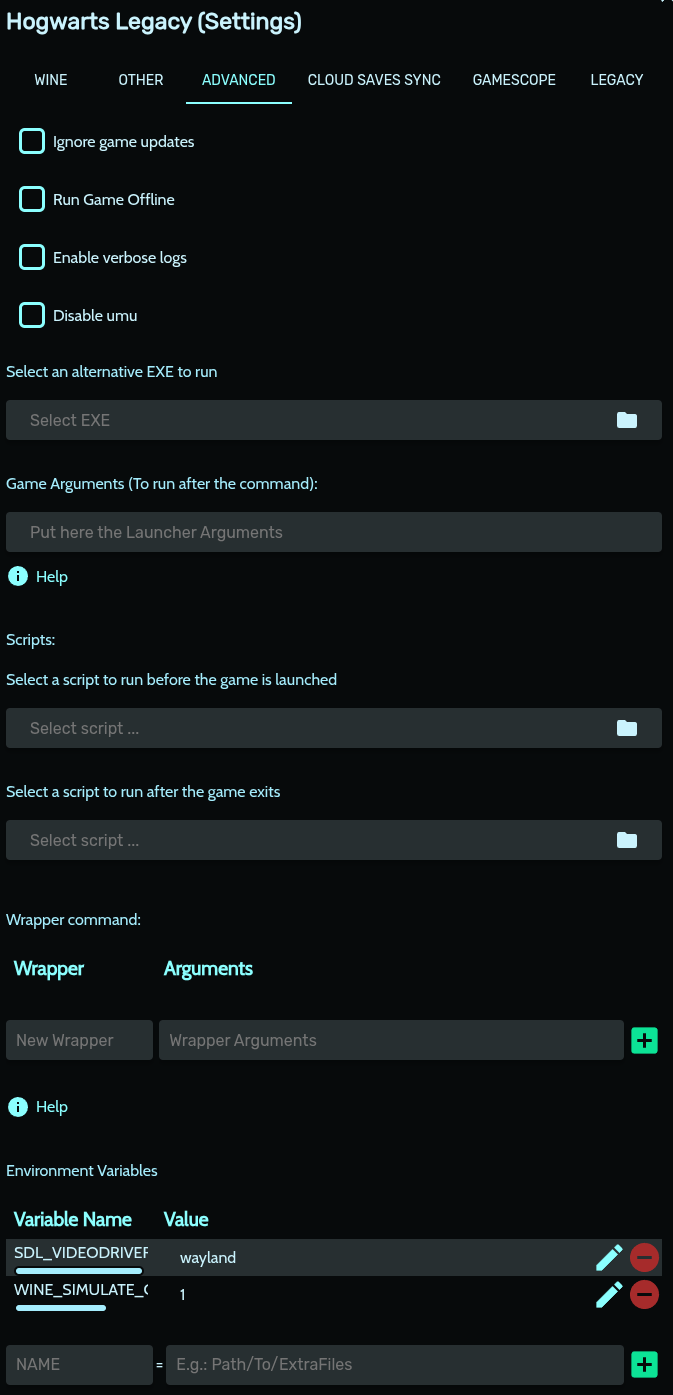
Under the Other / Advanced tab, find the Environment Variables section.
-
Add a new variable to enforce the Wayland driver:
-
Key: SDL_VIDEODRIVER
-
Value: wayland
-
(Optional) Add a second variable if you are experiencing mouse input issues or to force Wayland directly for Wine:
Switch to Cachyos-proton and it finally works