Hello!
I’m Joakim from Sweden 
I’ve been using Linux as my daily driver for a bit over 15 years now (no dualboot cheater  ) I did some playing around with Linux back in the late 90’s (Slackware and Red Hat i think it was). What really pushed me over to Linux though was Windows Vista, which I’m actually quite thankful for given the state of things as they are now.. jeez!
Not much of a distro-hopper - I’ve been on Ubuntu for all of this time. Did venture away a bit on Mint, Manjaro etc but always returned to Ubuntu and been pleased with it. But have had a bit of an itch lately and wanted to do a fresh installation with something else. So I read about CachyOS and it appealed to me so I went for that, and man I’m more than pleased now! CachyOS certainly blew some new life into my old 4th gen i7 desktop. I put it on an old celeron Chromebook aswell and it to got new life 
I really like how CachyOS has optimized binaries for my CPU etc and squeezes every bit of performance in Linux. Awesome job lads! 
And the mandatory screenshot, of course
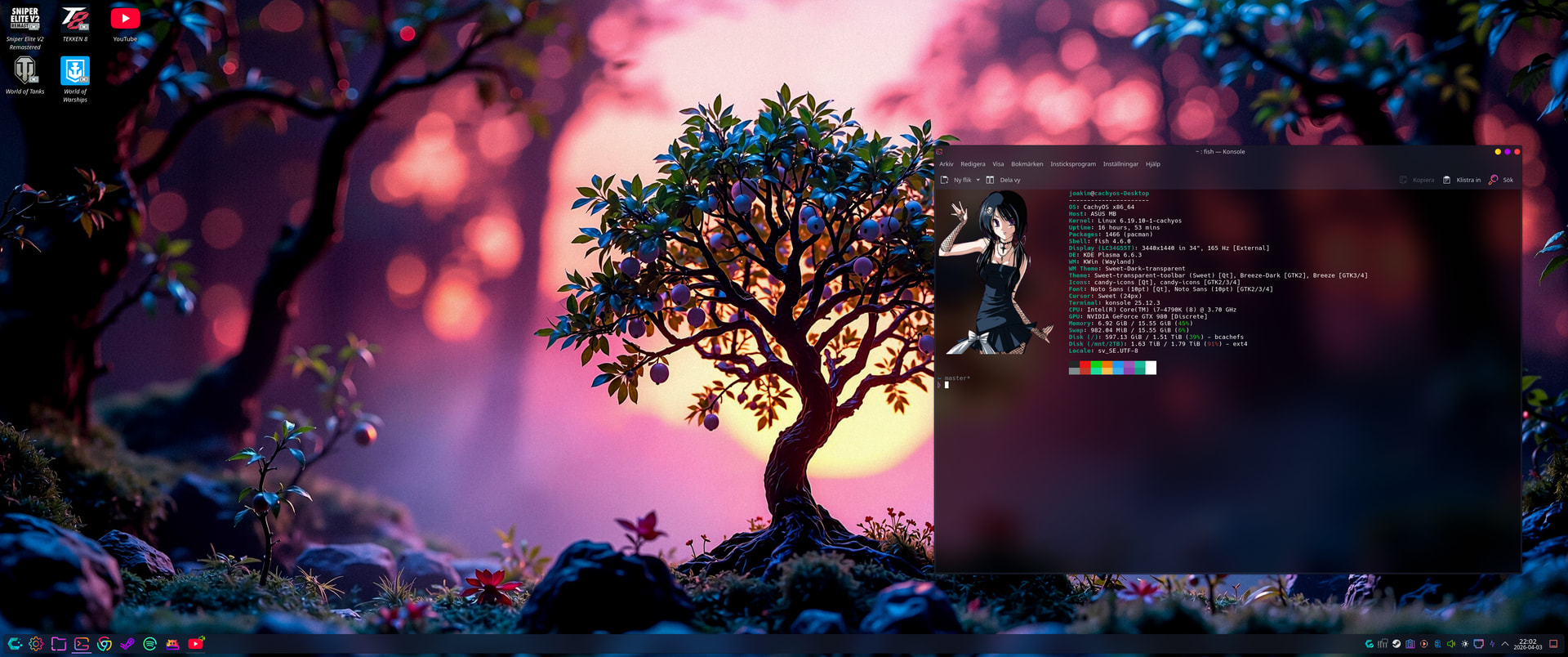


 Graphics in terminal is provided by kitty/sixel protocol and Konsole has support for both. I dunno of any GUI tools for this but throwing in a picture is quite easy.. Just edit your fastfetch config in ~/.config/fastfetch/