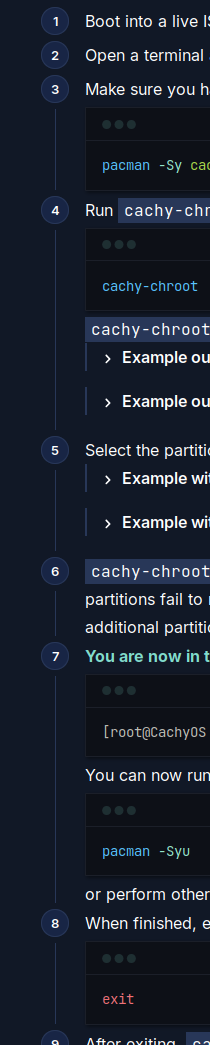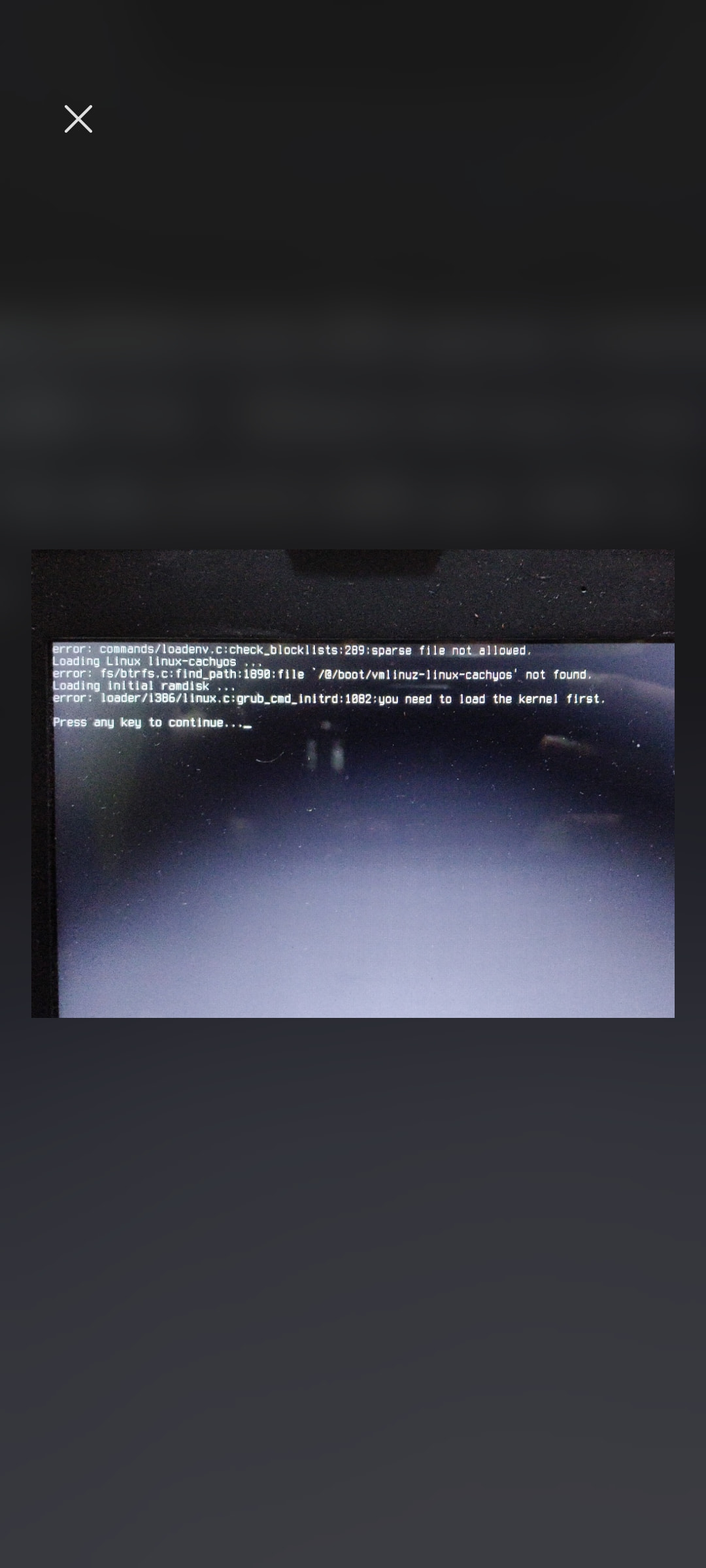
I can’t afford to format the drive Please help ,what shall I do next? I asked AI it told to restart using the live USB then do something. Is this the solution?
- Don’t do that.
- boot an install usb and update from chroot.
Didn’t understand.plz step by step, my 2 braincells aren’t working
The link lays out exactly what you need to do. Step-by-step.
Didn’t understand
Have you considered choosing an atomic linux variant that you won’t so easily brick? CachyOS is an Arch-based distro which carries with it a certain need of knowledge to properly maintain.
Ah very helpful answer. You give the sick a medicine or tell life is dangerous and stay at home?
You were offered the “medicine” (literal step-by-step listing of required commands!) but refused it. If you can’t follow the documentation that people have invested a lot of time and effort it, the better choice is probably a different distro - or paying a “doctor” to fix your stuff.
Year of the linux- quote
Bro. Cachy is still Arch linux at its roots. You refuse to read documentation. You respond unpolitely.
Sorry but Arch ppl are right in this scenario. RTFM.
The problem is: if we tie a bib on someone and spoon-feed them, we’re turning them into a “help vampire.” That goes against the spirit of the forum. It sounds harsh, but that’s the reality.
By the way, you are an Arch user!
i wish somebody has this solution written easily like me (check my other comment). FAFO method is good for health but more beneficial if somebody’s fafo is shared specially in a community driven projects 
Scenario-- During system upgrade if the device is turned off or got interrupted and now restarting doesnt boot and is throwing errors.
Note!! - Always and Always make sure to turn on the snapshot so that you can boot normally in these situations
Prerequisites
-
Do - cachy os bootable pen drive, boot into the cachy os live
-
If cannot boot into live, but still in the type underscore blink screen, press Ctrl + Alt + F3 (or try Ctrl + Alt + F2 or F4) to enter TTY
-
it may ask for id/pass- just type ‘root’ and in password ‘cachyos’
-
now type ‘cachy-chroot’ to enter main drive
-
press arrow keys to select the man drive(probably btrfs) then
i) It will ask you if you want to use the CachyOS Btrfs preset. Press y(yes) and then Enter.
ii) it might read your /etc/fstab and mount all your partitions successfully, you don’t need to mount anything else manually. so just press n(no) and then Enter. -
after this you need to do either 2 or full 4 steps to recover and reboot normally
-
Step 1: Clear the package manager lock file
rm -f /var/lib/pacman/db.lck -
Step 2: Reinstall the kernels and headers
pacman -Sy linux-cachyos linux-cachyos-headers linux-cachyos-lts linux-cachyos-lts-headers
WARNING! this step may give errors so do these:
i) Exit the Chroot Temporarily:
exit
ii) Connect to Wi-Fi:
nmtui
ii.ii)Select Activate a connection.
ii.iii) Choose your Wi-Fi network and enter your password.
ii.iv) Once connected, exit nmtui back to the terminal prompt.
(Quick test: Type ping -c 3 google.com to make sure it replies.)
ii.v) go back to chroot
cachy-chroot
After this do step 2 , u may have problem so do this
i)Remove the corrupted local database folder (like)
rm -rf /var/lib/pacman/local/linux-cachyos-lts-6.18.37-1
ii) Fix the CachyOS Keyring signature issue (likely)
pacman-key --init
pacman-key --populate archlinux cachyos
iii) redo main step 2 with -Syuu not just -Syu
pacman -Syy linux-cachyos linux-cachyos-headers linux-cachyos-lts linux-cachyos-lts-headers
still the step 2 might give error so do this:
i) Force Overwrite: “exists in filesystem”.
pacman -Syy linux-cachyos linux-cachyos-headers linux-cachyos-lts linux- cachyos-lts-headers --overwrite ‘*’
Now if GRUB successfully found both of your newly reinstalled kernels (linux-cachyos and linux-cachyos-lts) and successfully finished updating your boot menu skip step 3 and 4 and do this:
i)Leave the Chroot Environment
exit
ii)Reboot Your Laptop
reboot
!As the laptop is in black screen during reboot, remove the usb drive
9.Enjoy pc again with relief
{{{{{
-
Only do this as if upto No. 9 failed
-
Step 3: Rebuild the boot images
mkinitcpio -P -
Step 4: Update the GRUB bootloader menu
grub-mkconfig -o /boot/grub/grub.cfg -
Exit and Reboot: Once Step 4 finishes completely, you are all done repairing. Just type:
exit
Then type:
reboot
}}}}}
I dont have time to go through every part of that post right now but it should probably be said that you should also probably clear the cache of and reinstall the exact packages that were interrupted, and failing that - reinstall all (native) packages.
Simply “reinstall kernels” is only going to sometimes be correct for some cases and may not be the full of it even then.
PS.
Not related to installation (ISO) so tag removed.
hope this helps for future newbies
This is really long and also will not work for most people because it’s not generally correct.
Why not? Most of the time this should
For starters Limine and systemd-boot have been the generally-promoted bootloader options for quite a while and you assume grub. And it doesn’t address actually fixing whatever other package operation you cut off. It wouldn’t work with my filesystem. Also critical steps are described as “it might…”
It’s for noob users like me:) size there was no step by step guide