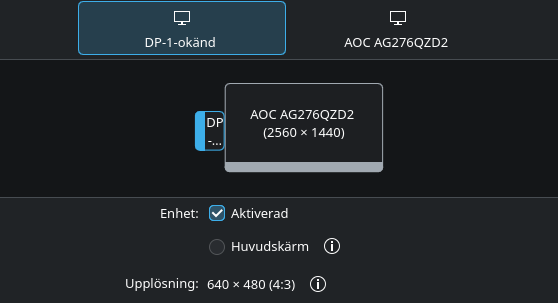
I did the installation and everything im still a bit new to linux and i have this 200hz monitor but whenever i plug the other cable which is stated by the name “DP-1” it goes into being 640x480 and there is no other options for this. Im using an hdmi cable and its handling it right now with 144hz but i really wanna get the full potential of my hardware. What should i do?
Ah, the classic 640x480 resolution trap over DisplayPort. Don’t sweat it, this is a super common issue when hooking up high-refresh monitors to Linux for the first time.
First of all unplug the DisplayPort cable from both the monitor and the GPU, blow out any dust, and push them back in firmly until they click. also many cheap DisplayPort cables sometimes have an active 20th pin that carries 3.3V power. This can confuse your GPU’s display engine and completely break EDID reading. If it’s a generic cable that came in an unbranded box, trying a high-quality, VESA-certified DP 1.4 cable usually fixes this instantly.
Since you mentioned using both cables, if you have both the HDMI and the DisplayPort cable running from the same computer to the same monitor at the same time, you can try to , unplug the HDMI cable entirely.Have only the DisplayPort cable connected.Turn the monitor off and on again, or reboot the PC.If the cable is physically fine, you can manually force CachyOS to push your monitor’s actual resolution and refresh rate, bypassing the missing handshake.
Open a terminal and see if you are using wayland or X11
Bash
echo $XDG_SESSION_TYPE
If it says Wayland (KDE/GNOME):
Wayland handles display overrides directly inside your desktop settings. Go to your System Settings → Display and Monitor. Click on the broken DP-1 screen. Sometimes, the resolution dropdown is just glitching in the UI—try changing the “Orientation” to rotated and back, or toggling “Adaptive Sync” (FreeSync/G-Sync) on and off. This can force Wayland to re-read the monitor capabilities.
If it says X11 :
you can use a tool called xrandr to build a custom 200Hz profile. Run this command to generate the timing profile for your monitor (assuming it’s a standard 1080p 200Hz screen):
Bash
cvt 1920 1080 200
It will output a line that looks like Modeline “1920x1080_200.00” … followed by numbers.
Copy everything after the word “Modeline” and feed it to these commands to force-create the option:
Bash
# 1. Create the new mode (paste your specific numbers after the name)
xrandr --newmode "1920x1080_200" 485.25  1920 2072 2280 2640  1080 1083 1088 1149 -hsync +vsync

# 2. Add it to your DisplayPort slot
xrandr --addmode DP-1 "1920x1080_200"

# 3. Apply it
xrandr --output DP-1 --mode "1920x1080_200"
Try pulling that HDMI cable out first and power-cycling the monitor—most of the time, the hardware just needs a clean, single-cable handshake to work properly .
Thank you for the advice, i am running wayland and i have tried your solutions both on top and on the wayland part of your suggestion but unfortunately it stayed the same, refusing to change anything and the adaptive sync option was not even available when i put it in. I have an MSI MAG 274qpf e20 wqhd 200hz and i was trying the displayport cable that came with the monitor. Again, thank you very much for the suggestion, it was worth a try.