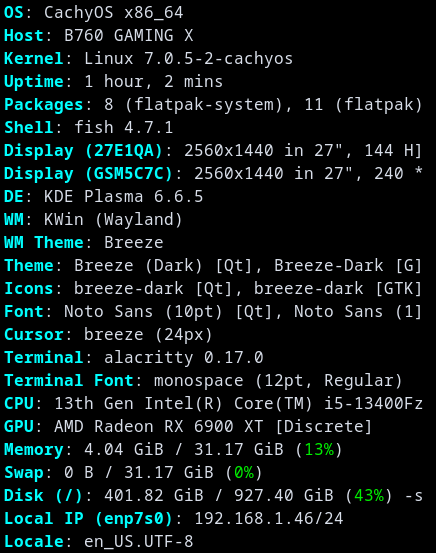
I’ve been using cachyos for a few months now and it is working mostly flawlessly (especially when compared to windows 11), yet there is one problem I couldn’t find any way to solve: I can’t resume from sleep…
I know there are already many posts about similar problems on the wiki but I couldn’t find any that worked for me (I already tried switching to the LTS kernel and other fixes that worked for other people). When I put my PC to sleep, the screens shut down but the fans and RGB stay on and when I try to resume, nothing happens, my keyboard and mouse act like they are completely disconnected from my PC / like my PC is off (the caps lock and num lock keys don’t light up)
I don’t know if it is due to a bug, a BIOS error (even though it’s up to date), a bad setting or a combination of those.
I got interested in this when I read your system report and saw you have an AMD card. Normally its Nvidia with this issue!
So I just tried a quick Google search. I was going to recommend you switch away from sleep to hibernate. Here is what Google had to say (which was quite a lot) I hope something there helps you:
Issues with AMD Radeon 6900/6000 series GPUs failing to resume from sleep (resulting in a black screen or hard reboot) are common on Arch-based systems like CachyOS, often related to amdgpu driver interactions with power management.
Here are the most effective solutions found in the CachyOS community to resolve this:
1. Enable GPU Recovery
Adding this parameter allows the kernel to attempt a reset of the GPU if it hangs during resume.
Edit the GRUB configuration file: sudo nano /etc/default/grub
Add amdgpu.gpu_recovery=1 to the GRUB_CMDLINE_LINUX_DEFAULT line.
Update GRUB: sudo update-grub
Reboot.
2. Disable USB Selective Suspend (If using USB 3.0+ Display) [1]
If your monitor is connected via DisplayPort or a USB-C/Dock, the USB controller might be failing to wake up.
In your BIOS, disable “USB Selective Suspend” or “USB power saving” settings.
Alternatively, in Linux, ensure that the USB device power management is not causing the issue by checking powertop.
3. Change System Power Profiles
Some users found that the default “balanced” profile causes issues with hardware, particularly with peripherals not waking, while “performance” resolves it.
Run the following command: powerprofilesctl set performance
4. Switch to linux-cachyos-lts
If you are running the latest bleeding-edge kernel, it might have a regression with your motherboard or GPU. Install the LTS kernel for better stability.
sudo pacman -S linux-cachyos-lts
Reboot and select the LTS kernel in the boot menu.
5. Disable Fast Boot in BIOS/Windows
If you dual boot with Windows, Windows “Fast Boot” locks devices (including GPU firmware), making them unavailable for Linux on wake.
Thanks for the reply, though this didn’t work for me, I don’t use GRUB but Limine (sorry, forgot to mention it before) but still tried to change limine settings, which didn’t work. I couldn’t find USB selective suspend or USB power saving in my bios and changing settings in powertop didn’t work. I already use performance mode (because more power :D). Like I mentioned before, switching to the LTS kernel didn’t change anything. Fast boot was already disabled in the BIOS.
I’m not sure if the problem is that I can’t resume from sleep or if my PC doesn’t properly goes to sleep so it can’t resume from sleep because it’s not sleeping (idk if it’s understandable)
The only thing that seems to happen when I enable sleep is that my screens, keyboard and mouse turn off, the fans and RGB stay on. I think it might be a problem with the sleep config itself, still I don’t know how to fix it and similar solved problems or AI don’t help.
On my full AMD laptop, i have to pass iommu=off as a kernel flag to get sleep works. Get a try : at boot, press E key when your bootloader appears. Append iommu=off at the end of the kernel command line. Then press CTRL X or ENTER to resume boot process.
Then test to sleep and resume. Setting is temporary so if it doesn’t work, just reboot to come back to your previous kernel state.
I don’t think it is possible to temporarily change settings in Limine (or at least I didn’t find how and it is not by pressing “e” like in GRUB), I tried changing it permanently and it did nothing (at least I didn’t brick my system in the process, I’m not yet used to edit config files manually).
I know, I just copied the whole output it gave me and forgot to remove this line, there may be other AI hallucinations in the steps after 2 but the things that do exist up to step 2 did work for me and I didn’t try the steps after 2 because my problem was already solved (yes, I really struggled just because my PC didn’t default to deep sleep)
The deep sleep fix (which I deleted) didn’t work, what happened is I did it on another PC which I thought also had the same problem… but obviously it didn’t, because it didn’t have the exact same specs (oops)
I managed to fix my problem on the PC which did have it, I was just on a buggy BIOS version (the last version got released less than a month ago), the new version works perfectly fine
Edit: the bug is still here but I know why: it is in fact, a BIOS problem but the new version doesn’t fix it, when I updated it disabled XMP and ReBAR (and suspend worked) then I activated XMP and ReBAR and it stopped working (it still didn’t work when I disabled them manually which is really weird, even weirder is it messed up my secure boot). In conclusion, no amount of kernel / bootloader tinkering will solve this bug. I guess either Gigabyte solves this problem in future updates or I need to change my motherboard if I really want to put my PC on suspend…