I’ve tried everything to install MATLAB—whether using the official installer or via PARU through AUR—but nothing seems to work. They say it’s an issue with the Wayland graphics environment. I’ve tried creating an X11 session, but it’s impossible; I used to be able to do it before. Is there any way I can install MATLAB, since I need it for my work?
What does this mean?
How does the install not work?
Or if not the install then what does not work?
What is?
What have you tried and what was the result?
It might help to detail what problems you encountered.
But the Archwiki has general guidance;
Best regards,
I’m new to Arch Linux, and I’ve tried three methods:
- The method shown in this video: https://www.youtube.com/watch?v=uiDgQlcPsTA
- The method shown in this community answer: Matlab Install and After Install
- Installing MATLAB from AUR using paru
In method 1, when I try to install it, the interface doesn’t appear and nothing else is displayed; it just says that gnutls-cli --version is older than what the MATLAB installer supports and that I need to download the compatible version. I did that, but it never opens.
In Method 2: I got to step 2 and couldn’t proceed further; an error appears saying “segmentation violation,” and I don’t know what that means. IMPORTANT: During installation, enable “Create symbolic links to MATLAB scripts in /usr/local/bin.” I don’t know what to do there
In Method 3: A “segmentation violation” error appears after installation. It let me install it, but I couldn’t open it, so I ended up uninstalling everything.
I saw that the GUI wouldn’t open on Wayland because it required an Xorg dependency, although there’s information on how to install it as mentioned, but nothing works for me.
Did I do something wrong that caused the installation to fail?
Are you running KDE/Plasma? If yes, did you install plasma-X11-session did you logout &/or reboot and choose X11 session on the login screen?
I tried everything I could to install X11, but when I logged in, the screen stayed black and didn’t respond at all. I did some reading and found that Xorg handles dependencies differently than Wayland, and that I needed to install additional components like KWin, but in the end, it didn’t work. So I’m not sure if there’s anything else I need to do in Cachy to set up an X11 session.
None of those methods are the recommended procedure.
I do not know what all of those may have produced but I would suggest reversing or undoing whatever else was applied by those previous attempts.
According to the wiki I would try first;
This is just standard being up=to=date and have the per-requisites for using the AUR;
sudo pacman -Syu git base-devel
Then use the default aur-helper to install the matlab package manager;
paru -S matlab-mpm
Then you use mpm to install whatever you need, ex;
mpm install --release=R2026a --destination=~/matlab MATLAB Simulink Deep_Learning_Toolbox Parallel_Computing_Toolbox
There is also an extra note about the license thing;
As to ‘not supporting wayland’ .. this is true.
But it does not mean it will not run or install on wayland.
It means you must use the mpm method as described above and that matlab will run on xwayland - that is in an X11 window inside your wayland session.
You do not need to run a whole X session.
When I install plasma-X11-session using Octopi, it automatically installs the dependency kwin-X11, furthermore when I login using X11 session it works as intended, so I cannot help you there. I am using the nvidia-open-dkms 610.43.02 driver.
Truly installing plasma-x11-session should be all that is required for an X11 session and dependencies are handled properly by pacman already.
But other problems might occur from other issues such as partial-upgrades or similar.
In any case an X11 session (plasma-x11-session package) should not be required at all if following the recommended approach (mpm as shown above).
this one in particular feels AI generated and is self-inconsistent, so I would keep far away from it for the most part. Starting with the first method listed in the Arch Wiki would seem the most prudent approach.
I followed all the instructions, but it doesn’t work. It installs, but when I try to activate it, it won’t let me—it shows a segmentation fault and won’t let me proceed past that point. I haven’t been able to fix it, so I think I’ll just go back to Windows. I’ve been trying to figure this out for over two days now, and it still doesn’t work.
What was the attempt and output?
I mean you have only been trying the recommended approach since the last reply.
But if this is the idea then of course that is your prerogative but will effectively end this query.
There’s no solution to this; installation is impossible.
I tried the AUR method posted by cscs, but following the instructions on the Arch wiki didn’t work for me. MATLAB installs, but when I try to activate it, I get a segmentation violation. After installing gnutls and nettle, it worked, but now when I try to activate it, it won’t let me and says, “Unable to install the license. Please try again later.” I can’t believe this is so complicated. I tried it with R2025B; I’ll try using it online, which is my only option left.
We still would probably benefit from full examples of these errors/outputs.
If following the normal procedure my other guess might be missing something?
Like maybe xorg-xwayland?
( This is included in the instructions but may have been skipped. )
But it sounds as if installation was successful?
Also, as mentioned in the wiki as well, for actually running it using xorg-wayland you may need to set the env var, ex;
QT_QPA_PLATFORM=xcb ~/matlab/bin/matlab -desktop -useStartupFolderPref
It is proprietary software.
So its all on MathWorks corp. 
Good morning, afternoon, or evening,
After several attempts, I was able to install and activate MATLAB. It was a complicated process, but it finally works. I followed the steps provided by cscs and the ArchWiki until I encountered a segmentation fault error caused by some libraries. In the end, I was able to include them in the MATLAB installer, and it worked. Thank you for responding in this thread, as I was able to find a solution (at least for now) that makes MATLAB work.
I’m sharing everything I did so that other users who encounter the same problem have information that might help them and don’t give up on using CachyOS (I’m not sure if it works in all situations; I’m just sharing what worked for me).
So far, the system has worked for me without any issues; everything runs very smoothly. I still need to get used to the constant updates, but unlike with Windows, they haven’t caused any problems for me.
Thank you for answering my question; without your help, I wouldn’t be posting on this forum.
1) Desde la terminal escribir lo siguiente: / At the command prompt, type the following:
yay -S matlab-mpm
paru -S matlab-mpm
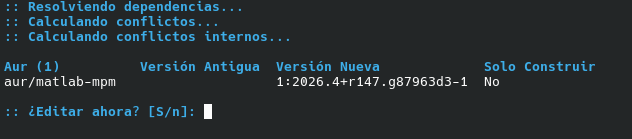
2) Verificar que matlab-mpm esté instalado con: / Verify that matlab-mpm is installed by running:
paru --Q matlab-mpm

3) Instalar Matlab con la siguiente instrucción: / Install MATLAB using the following command:
matlab-mpm install --release=R2026a --destination=~/matlab MATLAB Simulink Deep_Learning_Toolbox Parallel_Computing_Toolbox
Con esta instrucción el programa queda instalado en la carpeta /home del sistema, en caso de que quiera cambiarla puede indicar en la parte de destination la carpeta de su preferencia
This command installs the program in the system’s /home folder. If you want to change the destination, you can specify the folder of your choice in the “destination” field.
Este comando instala los componentes principales de matlab, en caso de que requiera otros toolbox puede instalarlos con el siguiente comando sin reinstalar todo el programa.
This command installs the main components of MATLAB. If you need additional toolboxes, you can install them using the following command without reinstalling the entire program.
matlab-mpm install --release=R2026a --destination=~/matlab Deep_Learning_Toolbox
Durante la instalación aparecerá esto / This will appear during installation

Luego de que termina la instalación debe activarse con el siguiente comando / Once the installation is complete, it must be activated using the following command
~/matlab/bin/glnxa64/MathWorksProductAuthorizer.sh
Pero aparece el siguiente error:
/home/usuario/matlab/bin/glnxa64/MathWorksProductAuthorizer.sh: línea 14: 38228 Violación de segmento (`core’ generado) $BINDIR/MathWorksProductAuthorizer $@
Según esto es un problema con las librerias gnutls y se procede a instalarlas / According to this, there is a problem with the gnutls libraries, so we will proceed to install them
wget https://archive.archlinux.org/packages/g/gnutls/gnutls-3.8.9-1-x86_64.pkg.tar.zst
Descomprimirla en una carpeta dentro de matlab
mkdir ~/matlab/gnutls
tar -xf gnutls-3.8.9-1-x86_64.pkg.tar.zst -C ~/matlab/gnutls
Ejecutar la siguiente instrucción para descargar nettle 3.10.1-1 / Run the following command to download Nettle 3.10.1-1
curl -O https://archive.archlinux.org/packages/n/nettle/nettle-3.10.1-1-x86_64.pkg.tar.zst
tar -xf nettle-3.10.1-1-x86_64.pkg.tar.zst -C ~/matlab/gnutls
Ejecutar el activador para que se pueda iniciar sesión y colocar las credenciales / Run the installer so you can log in and enter your credentials
LD_LIBRARY_PATH=~/matlab/gnutls/usr/lib/ ~/matlab/bin/glnxa64/MathWorksProductAuthorizer
Luego de esto ya el programa queda instalado pero no queda con ningún icono en el menú de aplicaciones por lo cual debe crearse uno con las siguientes instrucciones desde la terminal / After this, the program is installed, but there is no icon in the Applications menu, so you must create one by following these instructions in the terminal
cat > ~/.local/share/applications/matlab.desktop << ‘EOF’
[Desktop Entry]
Name=MATLAB
Type=Application
Terminal=false
MimeType=text/x-matlab
Icon=/home/luis-david/matlab/bin/glnxa64/cef_resources/matlab_icon.png
Exec= env LD_LIBRARY_PATH=/home/luis-david/matlab/gnutls/usr/lib/ LD_PRELOAD=/usr/lib/libstdc++.so.6 QT_QPA_PLATFORM=xcb XDG_CURRENT_DESKTOP=GNOME GTK_THEME=Adwaita:light /home/usuario/matlab/bin/matlab -desktop
Categories=Education;Science;
StartupWMClass=MATLAB R2026a Update 2 - academic use
EOF
Estás lineas crean un acceso directo en el menú de aplicaciones, en este caso uso KDE Plasma por lo cual desconozco si funcione para otros entornos de escritorio, en la linea de Exec se incluye una modificación en los temas de la aplicación para que Simulink no invierta los colores, para más información sobre esto último ingrese al siguiente link. / These lines create a shortcut in the Applications menu. In this case, I’m using KDE Plasma, so I’m not sure if it works for other desktop environments. The “Exec” line includes a modification to the application’s themes so that Simulink doesn’t invert the colors. For more information on this, please visit the following link.
Nota: En los comandos donde aparezca usuario deben colocar el nombre de usuario
Note: In commands where “user” appears, you must enter your username